
WooCommerce Development: How to Build a WordPress Online Store That Actually Sells

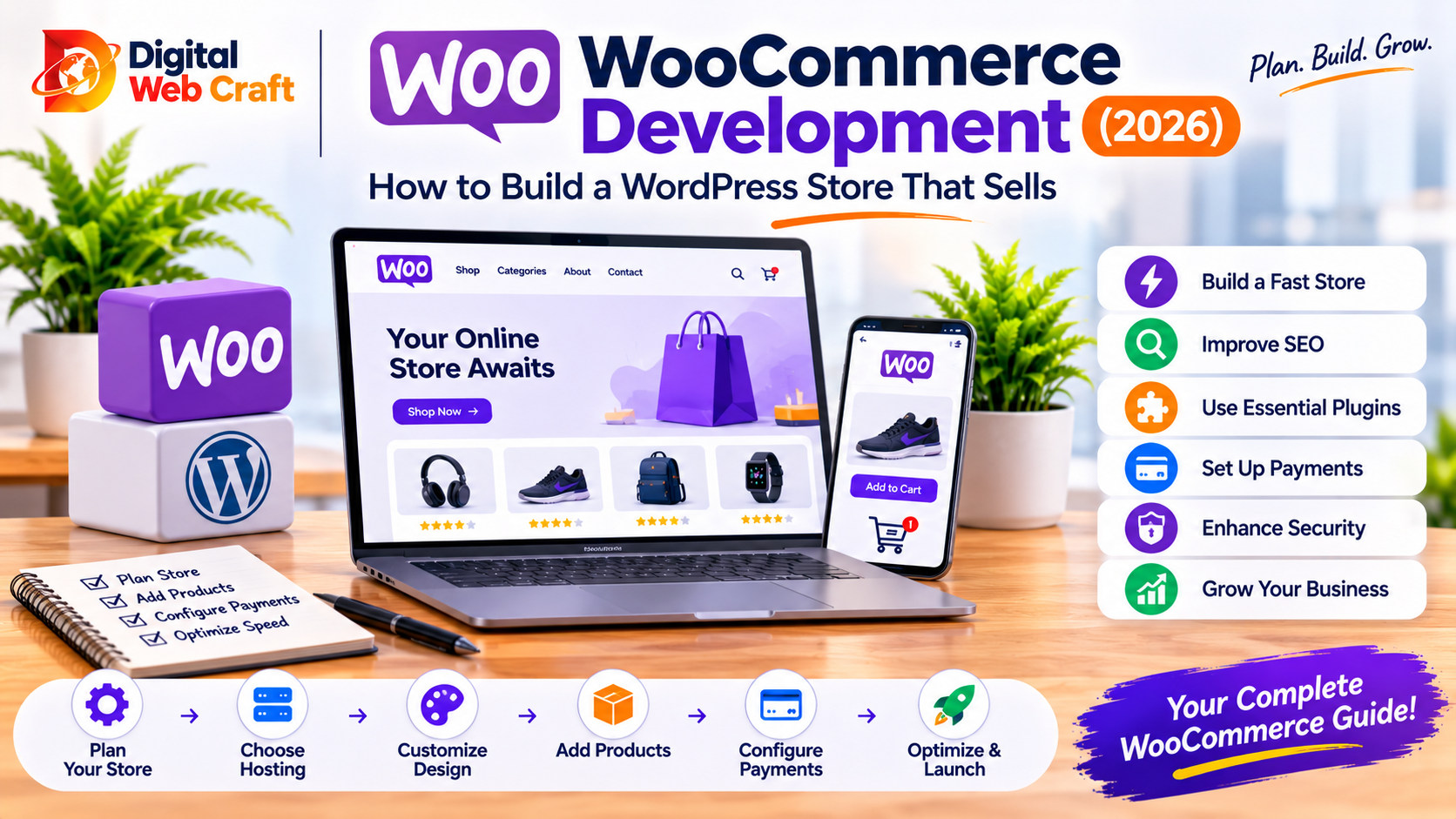
Opening an online store on WordPress is easy to start and surprisingly easy to get wrong. Installing WooCommerce takes minutes. Building a store that loads fast, converts visitors, handles payments reliably, stays secure and can grow with your catalogue takes planning and good engineering.
This guide covers WooCommerce development from start to finish: how to plan the project, choose hosting, pick a theme and plugins, set up products, payments, shipping and taxes, make the store fast and secure, and work with a developer without overspending. It is written for business owners, so there is no code, just the decisions that matter.
If you are still choosing between platforms, read our comparison of WooCommerce and Shopify first. This article assumes you have decided on WooCommerce, or are seriously considering it.
Key Takeaways
- WooCommerce is a free plugin that turns a WordPress website into an online store, giving you control over design, data and features.
- A good store starts with planning: products, customers, payments, shipping, taxes and the features you need in year one.
- Hosting quality has a major effect on speed, reliability and security, so budget for it properly.
- Fewer, well-chosen plugins make a faster and safer store than many overlapping ones.
- A lightweight or custom theme usually outperforms a heavy multipurpose theme.
- Clear product pages, simple checkout and trusted payment options drive conversions more than fancy design.
- Speed, mobile experience and security should be built in from the start, not fixed after launch.
- Custom WooCommerce development is worth it when plugins cannot meet a real business need, not by default.
- Ongoing maintenance, including updates, backups and monitoring, is part of running the store.
- A written scope, clear ownership of code and accounts and milestone payments protect you when hiring a developer.
What WooCommerce Development Involves
WooCommerce development covers everything needed to design, build, launch and maintain a store on WordPress. Depending on your needs, it can include:
- Installing and configuring WordPress and WooCommerce.
- Designing the store or customising a theme.
- Setting up products, categories, attributes and variations.
- Configuring payments, shipping, taxes and checkout.
- Installing and configuring plugins.
- Writing custom code for features that plugins cannot provide.
- Connecting the store to other systems such as accounting, inventory, email and CRM.
- Optimising speed, SEO and security.
- Testing, launching and maintaining the store.
A simple store with a few products might need mostly configuration. A larger store with custom pricing, subscriptions or integrations needs real development work. Knowing which of these applies to you is the first step to an accurate budget.
When WooCommerce Is the Right Choice
WooCommerce tends to be a strong fit when:
- You already have a WordPress website, or content and SEO are central to your marketing.
- You want full control over design, data and hosting.
- You need features or logic that hosted platforms restrict.
- You sell in regions where specific payment gateways are needed.
- You have a developer or agency who will maintain the store.
- You want your store, blog and landing pages in one place.
It may be less suitable if you want a fully managed, hands-off platform with minimal technical upkeep. In that case, Shopify may be easier, as we explain in our platform comparison. For a broader look at WordPress compared with other approaches, see WordPress vs custom websites.
Step 1: Plan Your Store
Planning prevents most expensive mistakes. Before any development starts, write down:
Products
- How many products, and how will that grow?
- Physical, digital, subscriptions, bookings or a mix?
- Variations such as size, colour or material?
- Do you need bundles, custom options or made-to-order items?
Customers
- Who buys, from where and on which devices?
- Do they need accounts, wishlists or reorder tools?
- Are there wholesale or business customers with special pricing?
Operations
- How will orders be fulfilled and shipped?
- Which carriers will you use?
- How will you manage stock, returns and customer service?
Payments and taxes
- Which payment methods do your customers expect?
- Which countries or regions will you sell to?
- What tax rules apply?
Marketing
- How will customers find you: search, social, ads, email?
- Do you need a blog, landing pages and discount campaigns?
Budget and timeline
- What must be live at launch, and what can wait?
A short, written brief based on these questions makes quotes more accurate. Our free AI Project Planner can help you structure it.
Step 2: Choose Hosting and Infrastructure
Hosting is the foundation of a WooCommerce store. Online stores are heavier than simple websites. They run database queries for every cart, checkout and account page, and they cannot rely on caching for those pages. Cheap, overcrowded hosting is a common cause of slow, unreliable stores.
What to look for:
- Modern PHP and database versions.
- Enough memory and processing resources for your traffic.
- Fast storage and server-level caching that understands WooCommerce.
- Automatic backups with easy restoration.
- Security features such as a firewall and malware scanning.
- A free or included SSL certificate.
- A staging site for testing changes before they go live.
- Good support from people who know WordPress.
Options:
- Shared hosting: low cost, but often too limited for serious stores.
- Managed WordPress or WooCommerce hosting: optimised for the platform and a sensible choice for most businesses.
- Cloud or VPS hosting: more control and scalability, but needs technical management.
Our managed hosting is built with business sites and stores in mind. Whatever you choose, make sure the hosting account is in your name.
Step 3: Choose a Theme or Build a Custom One
Your theme controls the look of the store and has a big effect on speed.
Ready-made themes
- Quick and affordable.
- Look professional out of the box.
- Many multipurpose themes load a lot of unused code, which slows the site.
- Your store may look similar to others using the same theme.
Lightweight themes plus a page builder or block editor
- A good balance for many stores.
- Choose themes known for clean code and WooCommerce compatibility.
Custom theme development
- Built specifically for your brand and products.
- Typically faster, because only the needed code is included.
- Gives you unique design and features such as custom product layouts.
- Costs more upfront, but can reduce plugin needs and maintenance later.
What matters for conversions:
- Clear product images and descriptions.
- Obvious buttons and a simple path from product to checkout.
- Easy navigation and search.
- A mobile-first layout, since many customers shop on phones.
- Trust elements such as reviews, policies and secure payment badges.
Step 4: Select Plugins Carefully
Plugins add features, but every plugin adds code, risk and maintenance. A good rule: install only what you need, from developers who maintain their work.
Common plugin categories for WooCommerce stores:
- Payments: card processors, wallets and local payment methods.
- Shipping: live carrier rates, label printing and tracking.
- Taxes: automated tax calculation where required.
- SEO: metadata, sitemaps and schema.
- Performance: caching, image optimisation and database cleanup.
- Security: firewall, login protection and malware scanning.
- Backups: scheduled, off-site backups.
- Email marketing and automation: newsletters, abandoned cart emails and customer segments.
- Reviews and social proof.
- Subscriptions, bookings or memberships, if your business model needs them.
- Product add-ons, bundles and filters.
- Analytics and tracking.
How to vet a plugin:
- Check when it was last updated and whether it is compatible with current WordPress and WooCommerce.
- Read reviews and support responses.
- Look at how many active installations it has.
- Test it on a staging site before installing on the live store.
- Avoid nulled or pirated plugins, which are a major security risk.
- Ask whether it duplicates a feature you already have.
Warning signs of plugin overload: a slow admin area, conflicting features, frequent errors after updates and a long list of plugins that nobody can explain. A developer can often replace several plugins with a small amount of custom code, which makes the store lighter and more stable.
Step 5: Set Up Products and Catalogue
A well-structured catalogue helps customers find items and helps search engines understand your store.
Good practices:
- Categories and tags: create a logical structure that matches how customers think.
- Attributes and variations: use them for sizes, colours and options, not separate products.
- Titles: clear, descriptive and consistent.
- Descriptions: write for people first, with benefits, specifications, materials, sizing and care instructions. Avoid copying manufacturer text word for word.
- Images: high-quality photos from several angles, compressed and with descriptive alt text.
- Pricing and stock: accurate, with clear sale pricing and stock indicators.
- SKUs: consistent codes that make inventory management easier.
- Cross-sells and upsells: suggest related items sensibly.
- Reviews: enable them and encourage genuine feedback.
If you have a large catalogue, use CSV import tools or a developer-built import to load products in bulk, then spot-check the results carefully.
Step 6: Payments and Checkout
Checkout is where sales are won or lost. Make it simple, fast and trustworthy.
Payments
- Offer the methods your customers prefer, such as major cards, digital wallets and local options.
- Use well-known, secure payment providers. Card details should be handled by the provider, not stored on your server.
- Confirm that your chosen gateway is available in your country and for your customers.
- Understand the fees before you commit.
Checkout best practices:
- Offer guest checkout, so customers are not forced to create an account.
- Ask only for the information you need.
- Show total costs, including shipping and taxes, as early as possible.
- Use clear error messages and address validation.
- Make the checkout mobile-friendly, with large buttons and autofill support.
- Display security and return information near the pay button.
- Send an instant order confirmation by email.
- Test every payment method thoroughly in test mode, then with a small real transaction before launch.
Abandoned carts: Many visitors add items and leave. Reminder emails, saved carts and clear shipping information can recover some of those sales.
Step 7: Shipping and Taxes
Shipping
- Define shipping zones, methods and rates that match your real costs.
- Decide whether to offer flat rates, free shipping thresholds, local pickup or live carrier rates.
- Set product weights and dimensions accurately if rates depend on them.
- Provide tracking information and clear delivery estimates.
- Write a clear shipping and returns policy.
Taxes
- Tax rules vary by country, region and product type, so check what applies to your business.
- Use WooCommerce’s tax settings or an automated tax solution, especially if you sell across regions.
- Decide whether prices are displayed with or without tax.
- Keep records for accounting and compliance.
If tax or compliance is complicated for your business, consult an accountant before launch. Setting this up wrongly is costly to fix later.
Step 8: Emails, Accounts and Customer Experience
The customer experience continues after the sale.
- Transactional emails: order confirmation, shipping updates and receipts should be branded, clear and reliable. Use proper email authentication (SPF, DKIM, DMARC) so they reach inboxes rather than spam.
- Customer accounts: order history, saved addresses and easy reordering encourage repeat purchases.
- Customer service: make contact options obvious, and respond quickly.
- Returns and refunds: a simple, fair process builds trust.
- Loyalty and referrals: consider rewards for repeat customers.
- Post-purchase follow-up: ask for reviews, and offer relevant recommendations.
Step 9: SEO for an Online Store
Search can be a major source of low-cost traffic for stores. WooCommerce works well with WordPress SEO tools, and you have a lot of control.
Priorities:
- Clean URLs and site structure: logical categories and products.
- Unique titles and meta descriptions: for products and categories.
- Rich category pages: with helpful introductory content, not just a list of products.
- Product schema: so search engines understand price, availability and reviews.
- Fast, mobile-friendly pages.
- Careful handling of duplicates: filters, sorting options and variations can create near-duplicate URLs, so use canonical tags and sensible indexing rules.
- Internal linking: from blog posts and guides to products and categories.
- Content marketing: buying guides, comparisons and how-to articles that attract customers before they are ready to buy.
- Redirects: when products are removed or URLs change.
Our technical SEO checklist applies directly to WooCommerce stores, and our SEO services include ecommerce SEO.
Step 10: Speed and Performance
Speed affects conversions, search visibility and customer satisfaction. WooCommerce stores need extra care because many pages, such as cart, checkout and account pages, are dynamic.
Key tactics:
- Use quality hosting with server-level caching that is WooCommerce-aware.
- Choose a lightweight theme and limit plugins.
- Compress images, use modern formats and set correct dimensions.
- Lazy-load images below the fold, but not the main product image.
- Use a content delivery network for global speed.
- Minimise and defer unnecessary scripts, including third-party chat, tracking and popup tools.
- Clean up the database and limit stored revisions and transients.
- Use object caching for stores with many products or visitors.
- Exclude cart, checkout and account pages from page caching, as dynamic pages must not be cached.
- Test regularly on mobile and monitor Core Web Vitals.
A store that loads quickly on a phone and a slow connection will usually outperform a heavier, prettier one.
Step 11: Security and Backups
Stores handle customer data and payments, so security is not optional.
Essentials:
- Keep WordPress, WooCommerce, themes and plugins updated.
- Use HTTPS across the entire store.
- Use strong passwords and two-factor authentication for admins and shop managers.
- Limit user roles to the access people need.
- Install a firewall and malware scanning.
- Limit login attempts and consider changing the default login URL.
- Use reputable payment gateways so card data never touches your server.
- Take frequent, automatic backups stored off-site, and test restoring them.
- Monitor for suspicious activity and uptime issues.
- Publish clear privacy and terms pages, and follow the data protection rules that apply to you.
Backups matter more for stores because orders arrive constantly. Choose a backup approach that can restore recent orders, not just last night’s snapshot.
Step 12: Testing Before Launch
Test as a customer, on real devices.
Functional tests:
- Browse, search and filter products.
- Add to cart, change quantities and apply coupons.
- Complete checkout with every payment method.
- Test shipping options and tax calculation for different addresses.
- Create an account, log in and reset a password.
- Check order emails and admin notifications.
- Test refunds and order status changes.
Technical tests:
- Speed tests on key pages.
- Mobile and tablet layouts.
- Different browsers.
- Forms and error handling.
- Redirects and 404 pages.
- Analytics and conversion tracking.
- Security scan and backup restoration.
Content checks:
- Product details, images and pricing.
- Policies: shipping, returns, privacy and terms.
- Contact information.
Use a staging site for testing and fix issues before going live.
Custom WooCommerce Development
Plugins cover many needs, but some businesses need more.
Reasons to consider custom development:
- Unique pricing rules, such as tiered, customer-specific or quantity-based pricing.
- Complex product builders or configurators.
- Custom checkout steps or fields.
- Connections to internal systems or specialised APIs.
- Custom order workflows and statuses.
- Special reports and dashboards.
- Replacing several plugins with one lean solution.
- Performance improvements for large catalogues.
- Unique customer portals or wholesale tools.
How it is done: Developers use WooCommerce’s hooks and filters, which are designed to let code change store behaviour safely, and build custom plugins or theme features. Good custom code is documented, follows WordPress standards and does not edit core files, so updates remain safe.
When not to go custom: If a well-maintained plugin does the job reliably, using it is usually cheaper and quicker. Custom work should solve a real need, not duplicate what already exists.
Integrations and Automation
Stores work better when they connect to the rest of your business.
Common integrations:
- Accounting software for orders and invoices.
- Inventory and warehouse systems.
- Shipping carriers and fulfilment services.
- CRM and email marketing platforms.
- Marketplaces and social selling channels.
- Customer support tools.
- Analytics and advertising platforms.
Automation can remove repetitive work, such as sending new orders to accounting software, tagging customers by purchase behaviour or alerting your team about low stock. Platforms like Zapier and Make can connect many tools without custom code. Our comparison of Zapier and Make can help you pick.
Scaling a WooCommerce Store
WooCommerce can handle large catalogues and busy periods, but growth needs planning.
As traffic and orders grow:
- Upgrade hosting resources, or move to scalable cloud infrastructure.
- Use object caching, a content delivery network and optimised database queries.
- Review and reduce plugin load.
- Consider a dedicated search solution for large catalogues.
- Move heavy tasks, such as imports and email sending, to background processes.
- Monitor performance and set alerts.
- Prepare for sales events with load testing.
As the business grows:
- Add multi-currency or multi-language support if you expand.
- Build wholesale and B2B features.
- Automate fulfilment and inventory.
- Consider a headless approach, using WooCommerce as the backend and a custom front end for the storefront, if performance and design demands justify the extra complexity.
Working with a WooCommerce Developer
A good developer or agency makes the difference between a store that works and one that constantly needs rescue.
What to look for:
- Live WooCommerce stores they have built, which you can browse and test.
- Experience with your type of store, such as subscriptions, bookings or large catalogues.
- A clear process covering discovery, design, development, testing and launch.
- Honest advice about plugins and when custom code is needed.
- Attention to speed, security and SEO, not just appearance.
- Post-launch support and maintenance options.
Protect yourself:
- Agree a written scope that lists pages, features, integrations and deliverables.
- Own the domain, hosting, code and all accounts.
- Pay in milestones tied to deliverables.
- Require a staging site and testing before launch.
- Ask for documentation and training.
- Clarify who pays for premium plugin licences and in whose name they are registered.
Our guide on how to hire a web developer includes questions to ask, red flags and contract tips. For budgeting, see our website cost guide.
Ongoing Maintenance and Growth
Launch is the start, not the finish.
Regular tasks:
- Weekly: check orders, errors, backups and security alerts.
- Monthly: update WordPress, WooCommerce, themes and plugins on a staging site first, then on the live store. Review speed, uptime and analytics.
- Quarterly: audit plugins, clean the database, review SEO and check checkout flow.
- Yearly: review hosting, security and the overall roadmap.
Growth activities:
- Improve product pages based on customer questions and returns.
- Test checkout improvements.
- Publish helpful content that attracts search traffic.
- Build email lists and customer loyalty.
- Review analytics to find drop-off points.
- Add features based on real customer behaviour.
Common Mistakes to Avoid
Starting without a plan. Unclear scope leads to missed features and budget overruns.
Choosing cheap hosting. Slow, unreliable hosting costs more in lost sales than it saves.
Installing too many plugins. Each one adds risk and slows the store.
Using a heavy multipurpose theme. Fancy demos often hide slow performance.
Ignoring mobile. Most visitors shop on phones, so test the whole journey.
Complicated checkout. Every extra field and step loses customers.
Skipping testing. Test payments, emails, shipping and taxes before launch.
Not backing up. Without backups, one bad update or attack can destroy months of orders.
Neglecting updates. Outdated plugins are the most common cause of hacked stores.
Weak product content. Thin descriptions and poor photos hurt sales and SEO.
Not owning accounts. Keep control of your domain, hosting, code and licences.
Expecting traffic to appear. A store needs marketing and content to attract visitors.
Launch Checklist
Foundations
- Quality hosting with SSL, backups and staging
- Domain and email set up and authenticated
- WordPress, WooCommerce, theme and plugins updated
Store setup
- Products, categories, images and descriptions complete
- Prices, stock and variations correct
- Shipping zones, rates and policies set
- Taxes configured and checked
- Payment methods tested
Experience and content
- Mobile and desktop tested on real devices
- Checkout tested end to end
- Emails branded and delivered correctly
- Policy pages published (shipping, returns, privacy, terms)
- Contact details visible
Performance, SEO and security
- Caching, image optimisation and CDN configured
- Titles, descriptions, sitemap and schema checked
- Analytics and conversion tracking working
- Security measures and two-factor authentication enabled
- Backups running and restoration tested
After launch
- Monitor orders, errors and speed daily at first
- Submit sitemap to Search Console
- Plan maintenance schedule and owner
Frequently Asked Questions
WooCommerce development is the work of planning, designing, building, customising and maintaining an online store on WordPress using the WooCommerce plugin. It can include setup, theme design, plugin selection, custom features, integrations, speed and security.
Yes. It is a flexible, widely used platform that suits many types of stores, especially those that value content, SEO and control. Results depend on good hosting, a clean build and ongoing maintenance.
A simple store can take a few weeks, while stores with custom design, many products or integrations take longer. Timelines depend on scope, how quickly you provide products and content and how much testing is needed.
It depends on the design, features, number of products, integrations and who builds it. WooCommerce itself is free, but you pay for hosting, extensions, development and maintenance. A clear brief and itemised quotes give the most accurate number.
Not always. A simple store can be set up by a confident beginner. For custom design, performance tuning, integrations or complex features, a developer is strongly recommended.
Managed WordPress or WooCommerce hosting is a good choice for most stores, because it is optimised for the platform. Look for good performance, backups, security and support, and make sure the account is in your name.
There is no magic number. What matters is quality and necessity. Remove plugins you do not use, avoid overlapping features and test performance after each addition.
Yes, with the right hosting, caching, database optimisation and development. Large catalogues need careful planning for search, filtering and performance.
Use quality hosting with caching, a lightweight theme, optimised images, fewer plugins and a content delivery network. Avoid caching cart and checkout pages, and test speed on mobile regularly.
It can be very secure when you keep everything updated, use reputable plugins and gateways, enable strong passwords and two-factor authentication, take backups and choose secure hosting. Most problems come from neglected updates and weak hosting.
Yes. WooCommerce supports many payment gateways through plugins, including major cards, digital wallets and regional methods. Check that your chosen gateway is available in your country and review its fees.
Regular updates, backups, security monitoring, speed checks, plugin reviews and checkout testing. Agree who is responsible, and plan a monthly maintenance routine from the start.
Final Thoughts
A successful WooCommerce store is built on boring, reliable foundations: good hosting, a clean theme, a short list of well-chosen plugins, a simple checkout, careful testing and regular maintenance. Fancy features matter far less than a store that loads quickly, works on every phone and makes it easy to pay.
Plan before you build. Keep it lean. Own your accounts and code. Test like a customer. And treat launch as the start of continuous improvement.
If you would like a team that builds WooCommerce stores for performance and growth, the Digital WebCraft team can help from planning to launch and ongoing care. Explore our ecommerce services, see our services, packages and portfolio, outline your store with the free AI Project Planner or book a free consultation.
Written by
Aamir Khan
As a Senior Web Developer at Digital Web Craft since June 2026, I focus on building scalable, high-performing web experiences. My role emphasizes innovative web development solutions, leveraging my skills in web application development and delivering meaningful results. With a Higher Diploma in Software Engineering from Aptech Learning, I bring a solid foundation in computer science to my work. My goal is to create impactful, user-centric digital solutions that align with organizational objectives while continuing to grow as a professional in web development.